Layer as much as you like
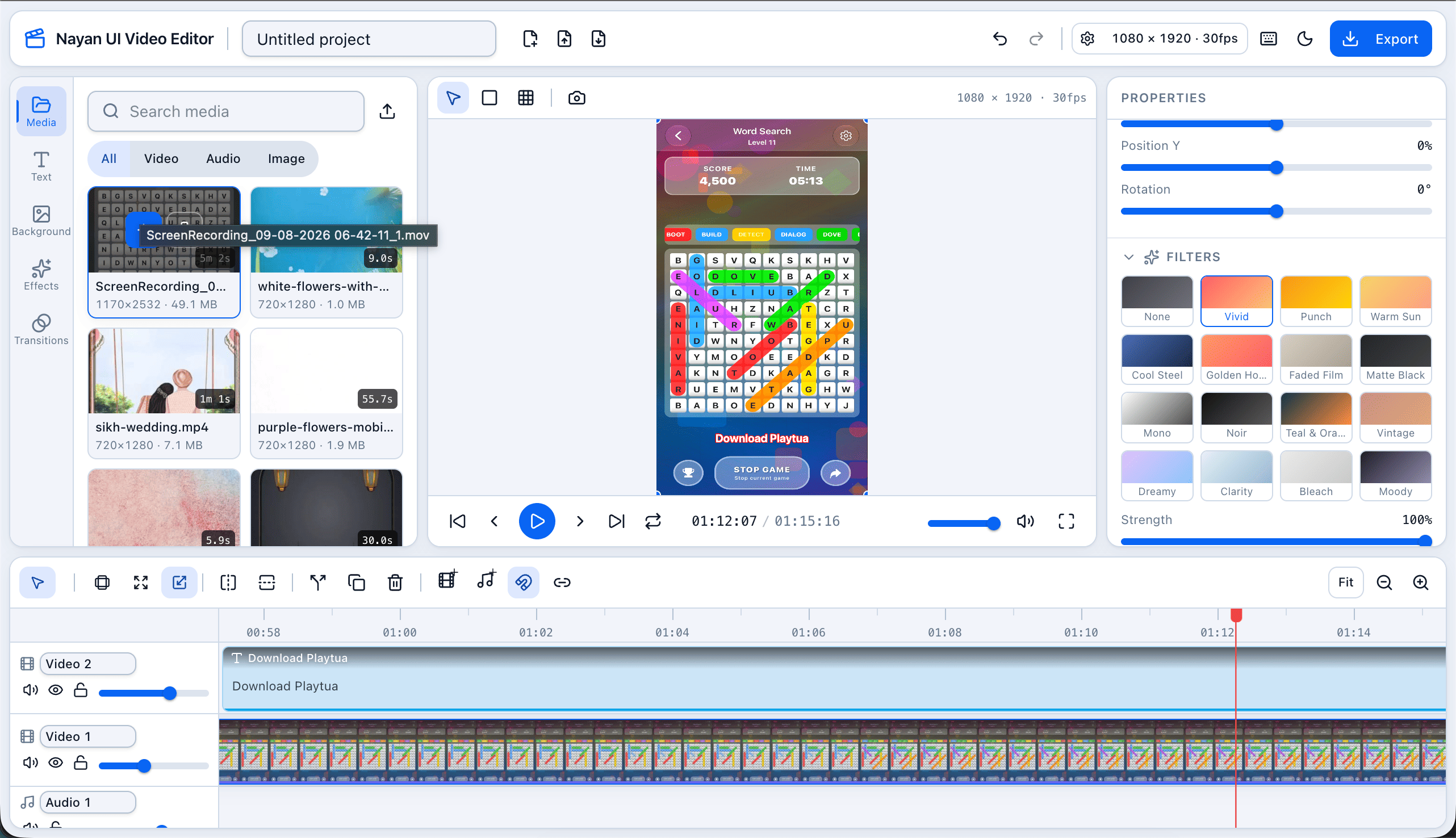
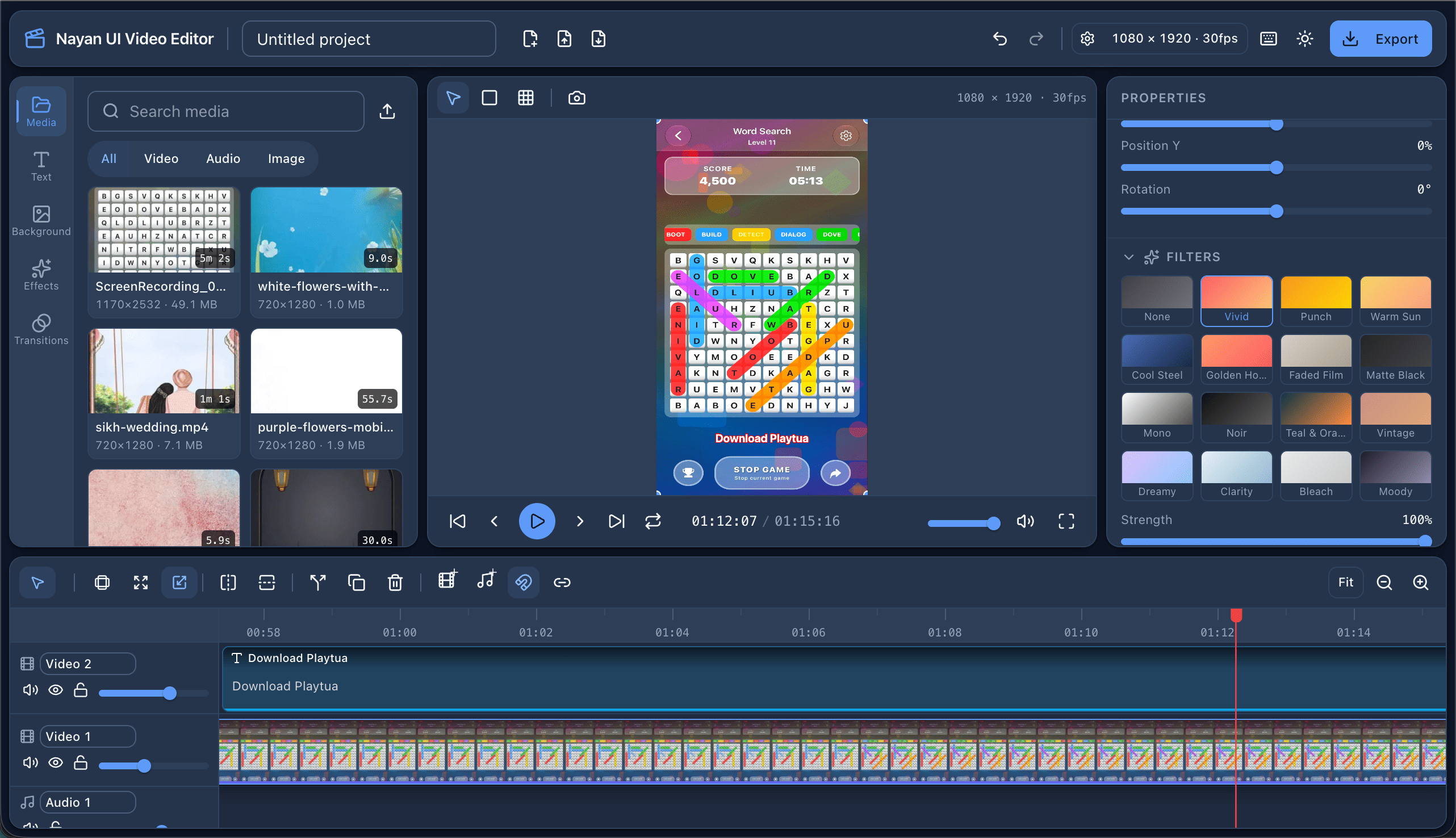
Stack video, music, voice-over and titles on as many tracks as you need, and move any of it without disturbing the rest.
Video Editor
Edit video in a browser tab — trim, layer, colour, caption and export, all the way up to 4K. Your footage stays on your own computer the whole time.
Free forever · MIT licensed · Works offline · Nothing leaves your device
Features
Not a trimmer with a few sliders. The things you actually need to finish a video.
Stack video, music, voice-over and titles on as many tracks as you need, and move any of it without disturbing the rest.
Drop out the background behind your subject and put anything you like there instead, with edges that still look believable.
Fifteen one-click looks, from warm and sunny to cold and cinematic, each with a dial so you can take it as far as you want.
Eighteen transitions — fades, wipes, slides, zooms and a whip pan — for when a hard cut is not what the moment needs.
Add readable text anywhere on the frame, pick a style, and have it appear with a little animation rather than just popping in.
Balance your levels, fade music under speech, slow a clip down or run it backwards — and the audio never drifts out of step.
How it works
Four steps from a folder of clips to something you can post. No sign-up in front of any of them.
Drag your videos, photos and music straight in. Nothing gets uploaded — the editor reads the files where they already are.
Shorten clips, split them where you want, and close the gaps. Edges snap together so your cuts land where you meant them to.
Choose a look, drop out a green screen, add titles, and put a transition between the shots that need one.
Export a finished video and it lands in your downloads. Or save the project and come back to it whenever you like.
Wherever it is going
Pick the shape once and the preview, the guides and the export all follow it.
One-click presets for Reels, Shorts and TikTok. Landscape footage fills the frame behind itself instead of sitting in black bars.
YouTube, feeds and ads, up to 4K. Safe-zone guides keep your titles clear of the places apps put their own buttons.
Cut a podcast on the same timeline and export just the mix, without a video track riding along with it.
Saving gives you a single file with the timeline and all of your media inside it, so you can close the tab, move to another machine and pick up exactly where you left off.
FAQ
Yes — free, MIT licensed and open source, with no tiers, no trial and no watermark. There is no account to make and nothing to pay for, because there is no server to pay for.
No. There is no server and no upload step. Your media is opened directly from disk, edited in the browser, and the finished file is written back to your downloads folder. Nothing ever leaves the machine.
Neither. The only practical limits are your machine’s memory and how long you are willing to wait for the export.
Yes, all the way up to 4K, and it stays smooth while you work because the editor uses the same video hardware your browser uses to play it.
Pick the vertical preset when you start. If your footage is widescreen, you can either reframe it or let the shot fill the space behind itself, so you get a full frame instead of black bars.
Yes. Saving gives you one file with your whole project inside it, media included, so you can reopen it later — on this computer or a different one — and everything is still there.
Nothing to install, nothing to sign up for and nothing to upload. Drop a clip in and go.